> For the complete documentation index, see [llms.txt](https://docs.freedomfactory.io/llms.txt). Markdown versions of documentation pages are available by appending `.md` to page URLs; this page is available as [Markdown](https://docs.freedomfactory.io/docs/setup-your-dgen1/operating-dgen1.md).
# Operating dGEN1
The dGEN1 is easy to operate if you've had any experience with a iOS or Android device. In this section we will discuss peculiarities that are not found on similar devices
## Navigation
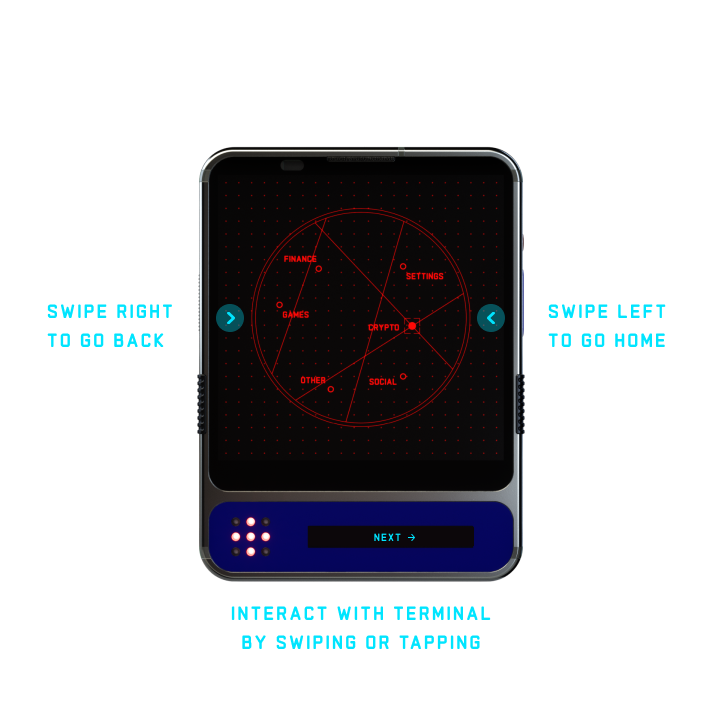
The devices uses a modified gesture-based navigation system. Here is what you need to know:
## Terminal screen
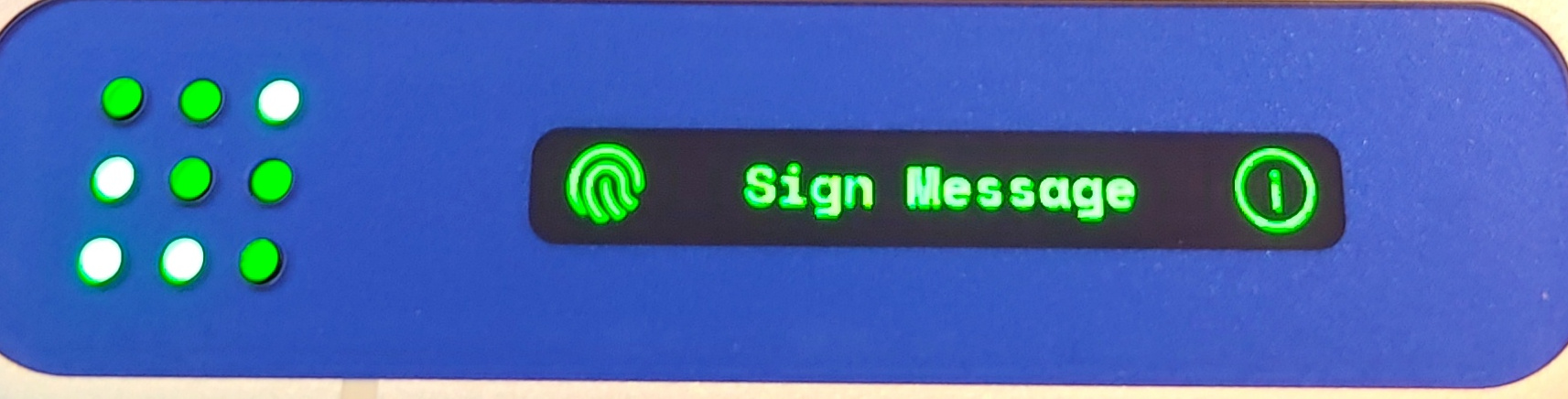
The dGEN1 includes a secondary, smaller display at the bottom of the device, called the **Terminal Screen**. This touch-enabled screen can be used to interact with supported apps. When it’s not actively in use, it shows useful system information.\
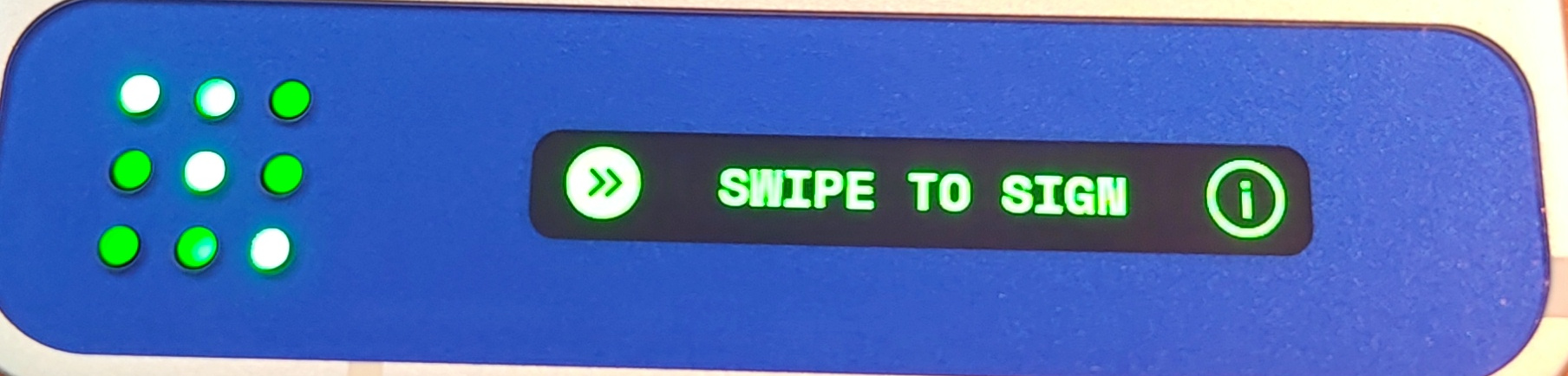
Whenever you send a transaction on the dGEN1, the **transaction digest** is displayed on the Terminal Screen. On the right side, you’ll see an **info (ℹ️) icon** — tap it to open a dialog on the main screen with full transaction details.
On the left, you’ll see either:
* a **fingerprint icon**, if you have a fingerprint registered, or
* a **right-pointing arrow**, if you don’t.
To confirm the transaction, either:
* **press the fingerprint sensor** on the back of the device, or
* **swipe from left to right** on the terminal screen.
## Lock-Screen
To dismiss the lock screen, swipe horizontally or in an upward motions. If you have a pin setup, you will prompted to type it out and confirm by pressing the bottom right button. You can skip this by just pressing the finger print sensor, if you have a fingerprint enrolled on the system.
## Home screen navigation
The home screen is divided in 3 tabs:
* Home: All favorite apps
* Index: All apps
* Active: Currently running apps
An arrow on the left of the tab indicates the currently active tab. Change the current tab by pressing on the items.\
\- To add/remove apps to the home tab, just long press the app name.\
\- To search across your apps, press on the search icon on the top right.
## App navigation
While using an app, **swipe right from the left** edge of the screen to go back to the previous screen. To return to the home screen, **swipe left from the right edge** of the screen.
While using official dGEN1, pay attention to the terminal screen as interaction options might be displayed there instead of the primary screen.
## Status bar & quick settings
To access the status bar, swipe in a downward motion, preferably from the upper edge of the screen. Swipe upwards again to expand the quick setting tiles list. On the bottom right you will be presented with 3 icons:
* Stylus icon: Edit setting tiles
* gear icon: Settings options
* Power icon: Power options
You can summon the status bar by also double tapping on the middle the secondary screen.

## LED-Matrix
The led matrix is a 3x3 rgb led array that functions as your heads-up display. It will display notification or context dependent images either as static pixel art or animations.\
You can modify matrix behavior in the Settings app by selecting "Your dGEN1" top level setting, followed by the "LED Matrix" voice.
## Activate AI assistant
At any point, double press the power button summon the AI assist. You can interact with it either via the chat on top of the screen or vocally by holding the red button.\
You can dismiss it by pressing the X icon on the top right.
## Change device system colors
Open the settings app and select the "Your dGEN1" top level setting. Under the "System color" voice, you'll be able to pick between these colors:
* Red
* Green
* Aqua (default)
* Ochre
* Gray
## Miscellaneous actions
**Take a screenshot**: Press the volume down and power button simultaneously.\
**Activate the laser:** Hold the button pressed on the second tap to keep the laser running.